Our five favorite Shortcuts each take about a minute to set up. This guide walks you through adding them and putting in your own info, and it shows you how to build your own.
Before you start
- An iPhone with iOS 27
- TaskFire 12.1 or later
- For the Shortcuts that use Apple Intelligence (Morning chief of staff, Emailed To-Dos, Can You Grab, and Bills): an iPhone 15 Pro or newer with Apple Intelligence turned on
Adding a Shortcut
- Tap a Get this Shortcut link below.
- The Shortcuts app opens and shows what the Shortcut does. Tap Add Shortcut.
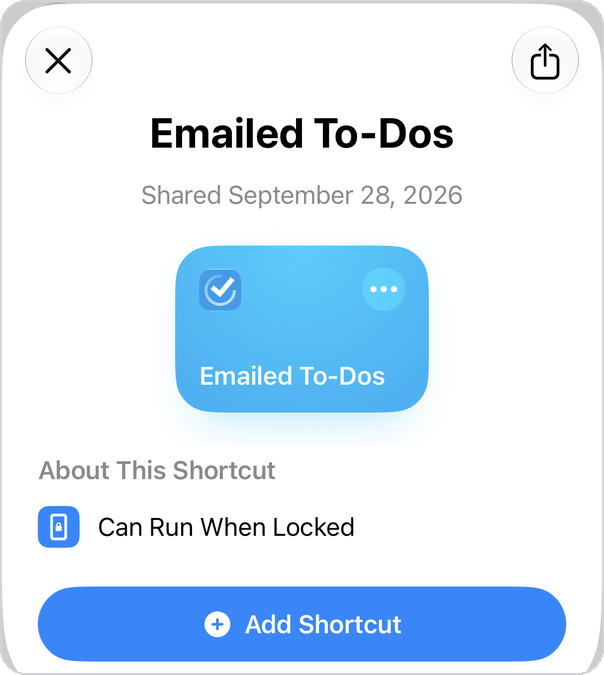
- It now shows up in the Shortcuts tab. Tap it once to open it and put in your own info, using the steps below.
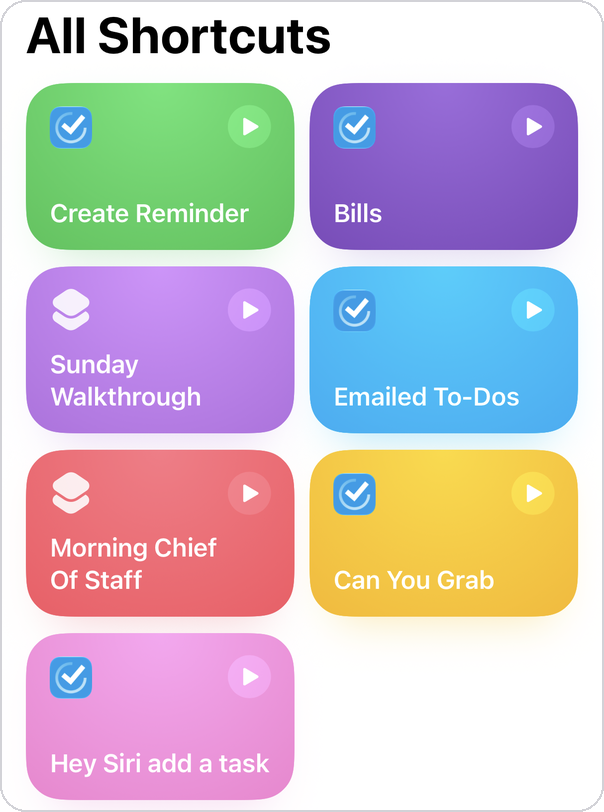
1. Your morning chief of staff
Runs when you turn off your morning alarm, and adds three starred prep tasks for your day.
- Open Morning Chief of Staff.
- The top step says When Wake-Up Is Stopped. If you wake up to a different alarm, tap Wake-Up and pick yours.
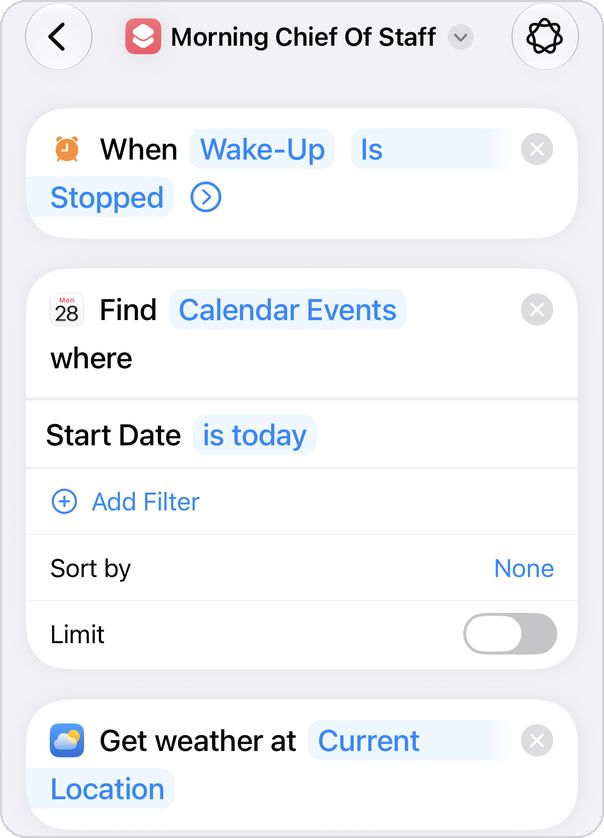
- Tap Done.
That's it. Tomorrow morning, check TaskFire after your alarm goes off.
2. The "can you grab…" text
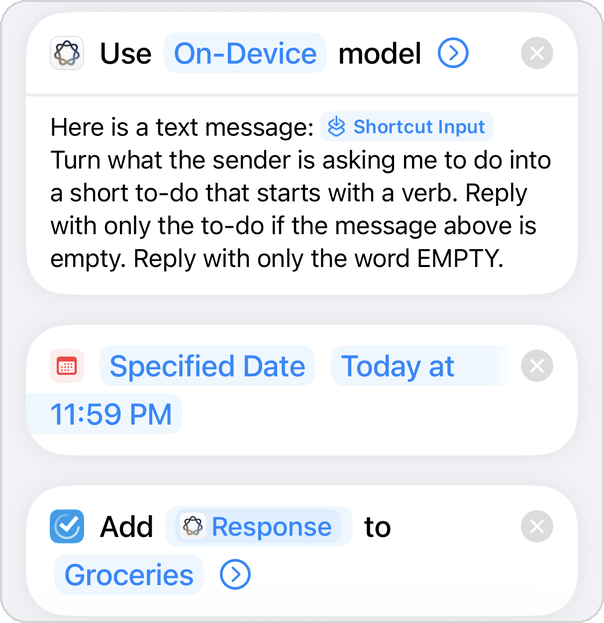
Adds a task to your TaskFire Inbox when a certain person texts you asking you to grab something.
- Open Can You Grab.
- In the step at the top, tap TaskFire next to Sender and change it to the person it should listen for.
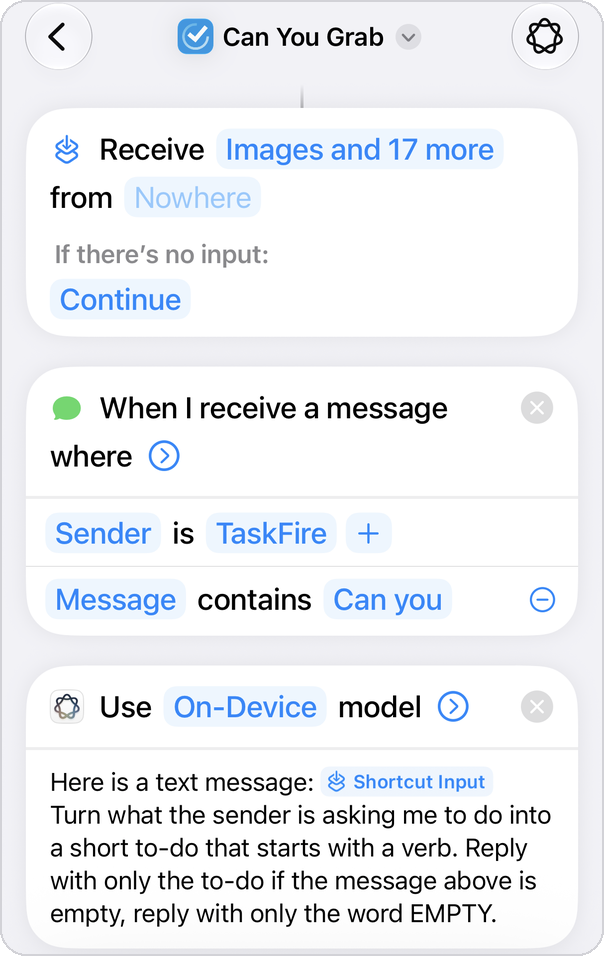
- It only runs when their text includes "can you." Capital letters don't matter. To catch other wording, tap Can you and change it.
- Tasks land in your Inbox. To use a different list, like Groceries, tap Inbox in the last step and pick one.
- Tap Done.
Try it: have them text you "Can you pick up grape juice?" A task called "Pick up grape juice" should land in your Inbox, due today.
3. The email that needs something from you
When a certain person emails you, it adds each thing they ask for to TaskFire, with any deadline they mention. The email is saved in the task's note.
This one works with the Apple Mail app. If you use Gmail or Outlook, add that account to Mail first: Settings > Apps > Mail > Mail Accounts > Add Account.
- Open Emailed To-Dos.
- In the step at the top, tap support@appigo.com next to Sender and change it to the email address of the person it should watch, like your boss or your kid's teacher. Don't skip this step, or it will only watch for emails from TaskFire Support.
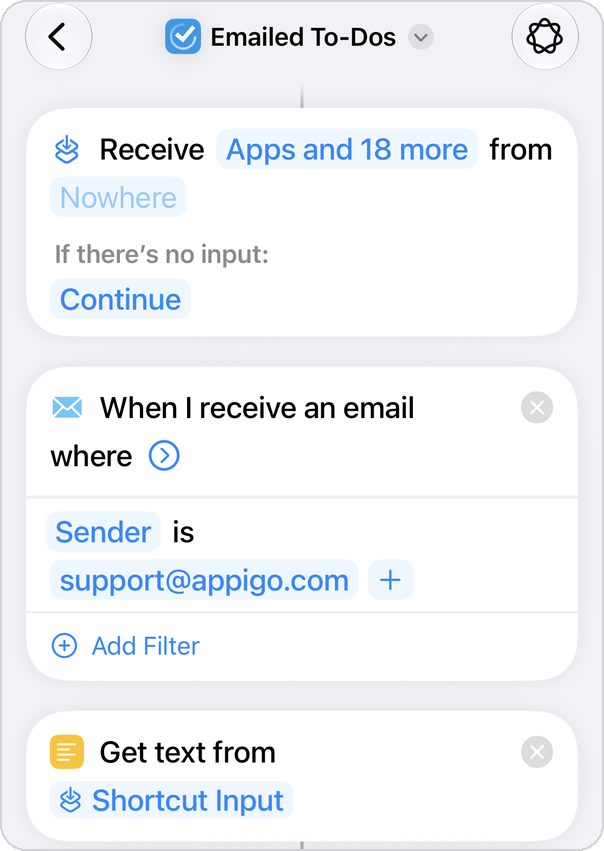
- Tasks land in your Inbox. To use a different list, tap Inbox in the last step and pick one.
- Tap Done.
Try it: have them email you something like "Can you send me the Q4 budget by Thursday?" A task called "Send the Q4 budget" should land in your TaskFire Inbox, due Thursday. 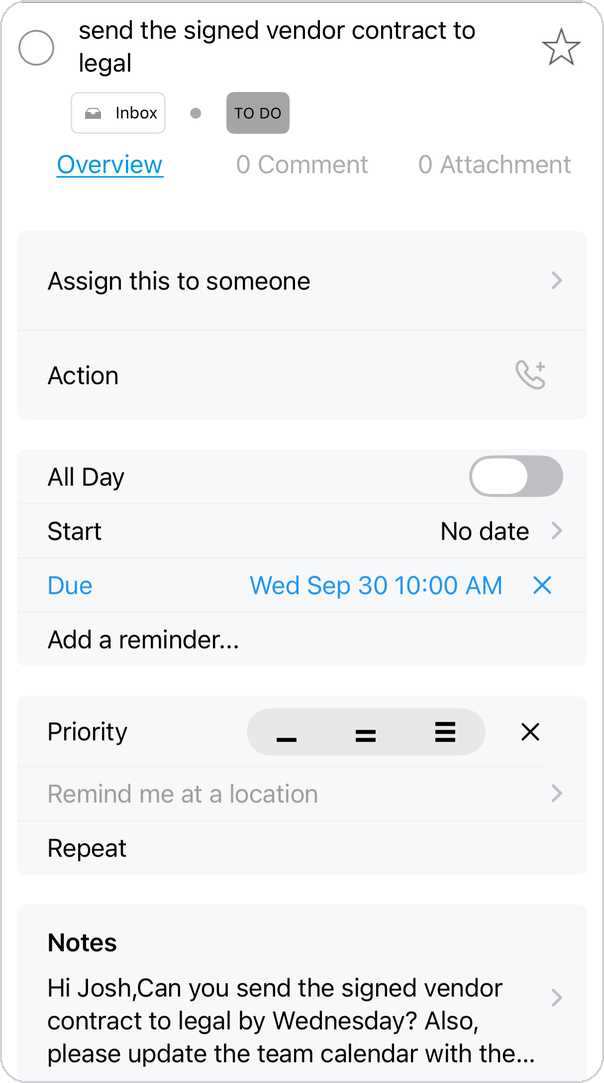
Good to know: it reads the email itself, not attachments. If the ask is only inside a PDF, it won't see it.
4. The Sunday walkthrough
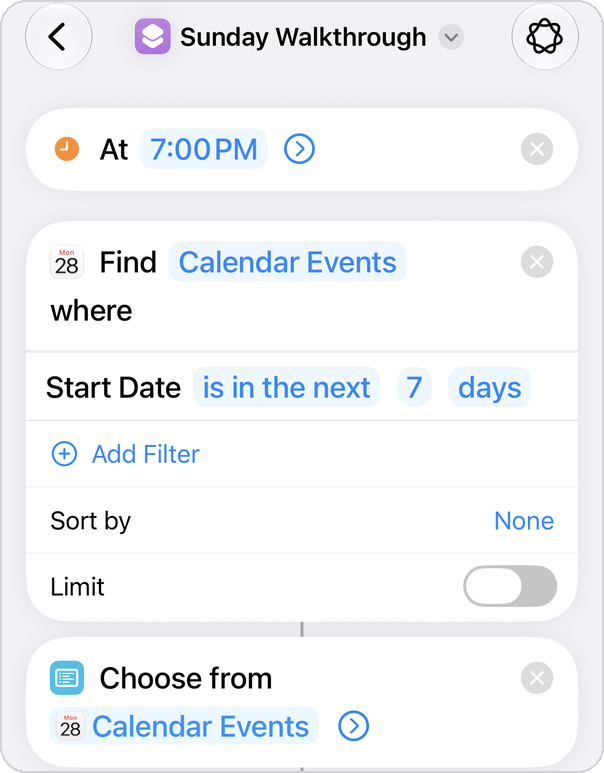
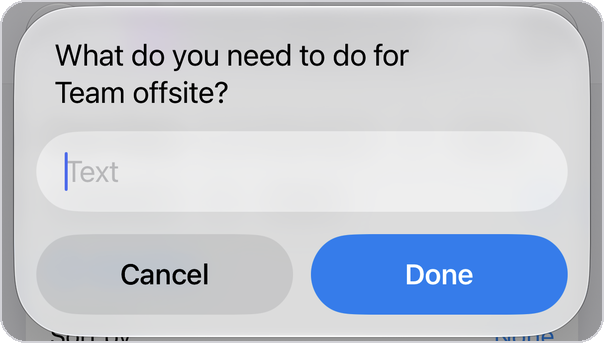
Every Sunday night, it shows you next week's calendar. You check the events that need prep, type what you need to do for each, and each answer lands in TaskFire the day before the event.
- Open Sunday Walkthrough.
- It runs Sundays at 7pm. To change that, tap 7:00 PM at the top and pick a new time.
- Tap Done.
Try it now: tap the play button at the bottom. Check a couple of events, type a to-do for one, and leave the other blank to skip it. 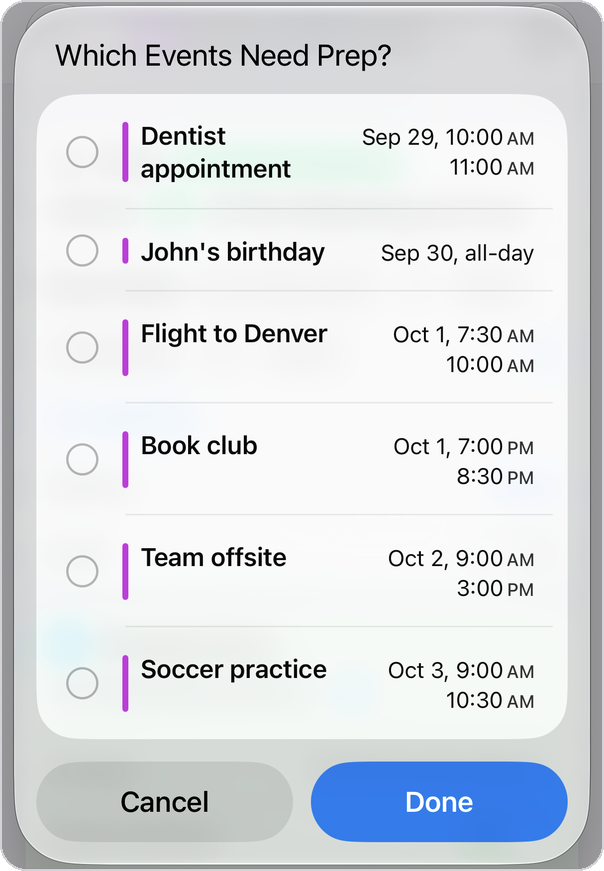
Your task will include the event's name, like "Order bagels (Team offsite)." 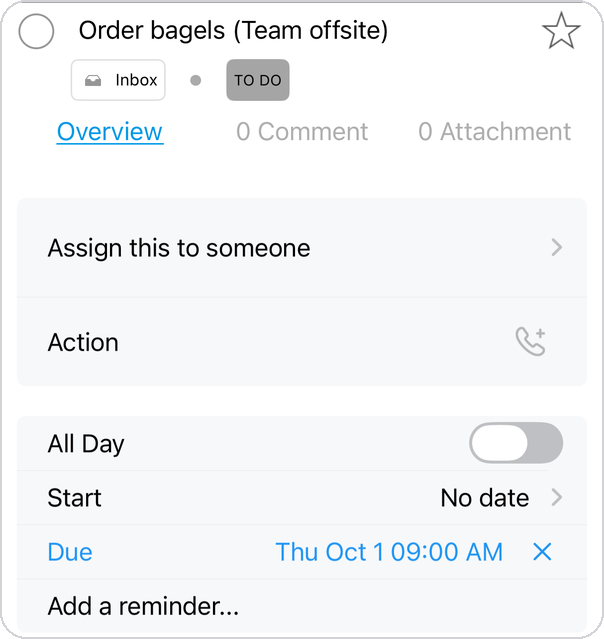
5. Bills, handled in one tap
Share a bill to it, and it adds "Pay [company] [amount]" to TaskFire on the day it's due, tagged Bills.
Nothing to set up. To use it:
- Open a bill: a PDF, or a statement page in Safari.
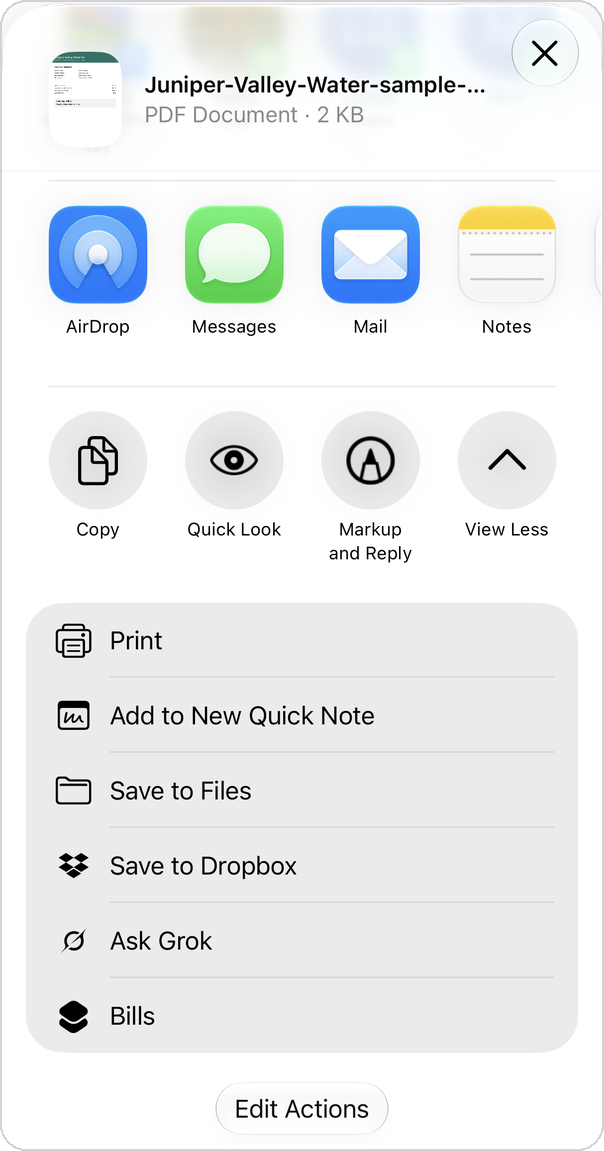
- Tap Share, scroll down, and tap Bills.
- Check TaskFire.
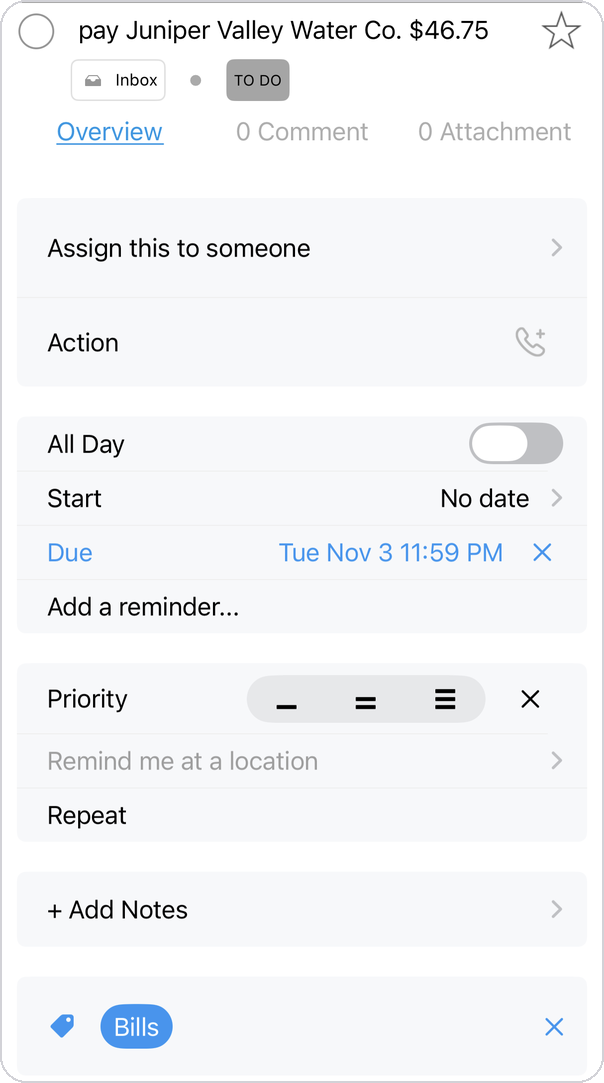
Don't see Bills in your Share menu? Scroll to the bottom of the Share menu, tap Edit Actions, and turn it on.
Build your own
You can build your own Shortcuts with TaskFire too.
- Open Shortcuts and tap +.
- Tap Edit in the top corner.
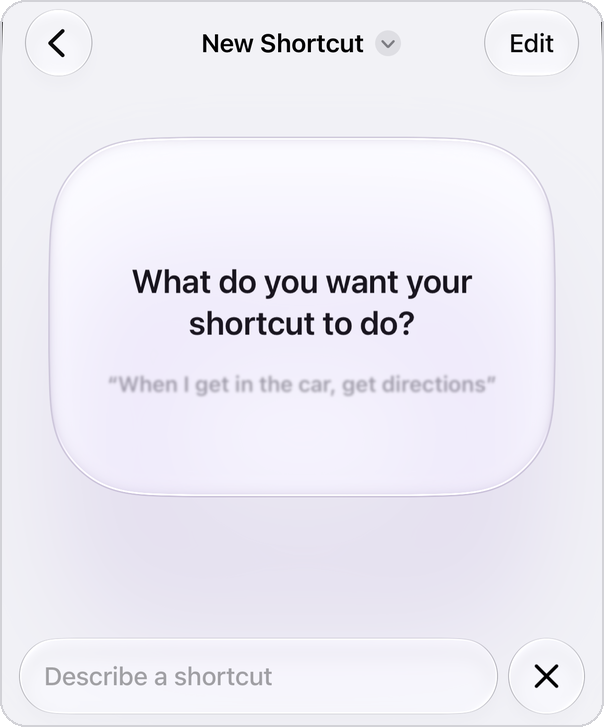 Then tap the search bar and search TaskFire to see all of our actions.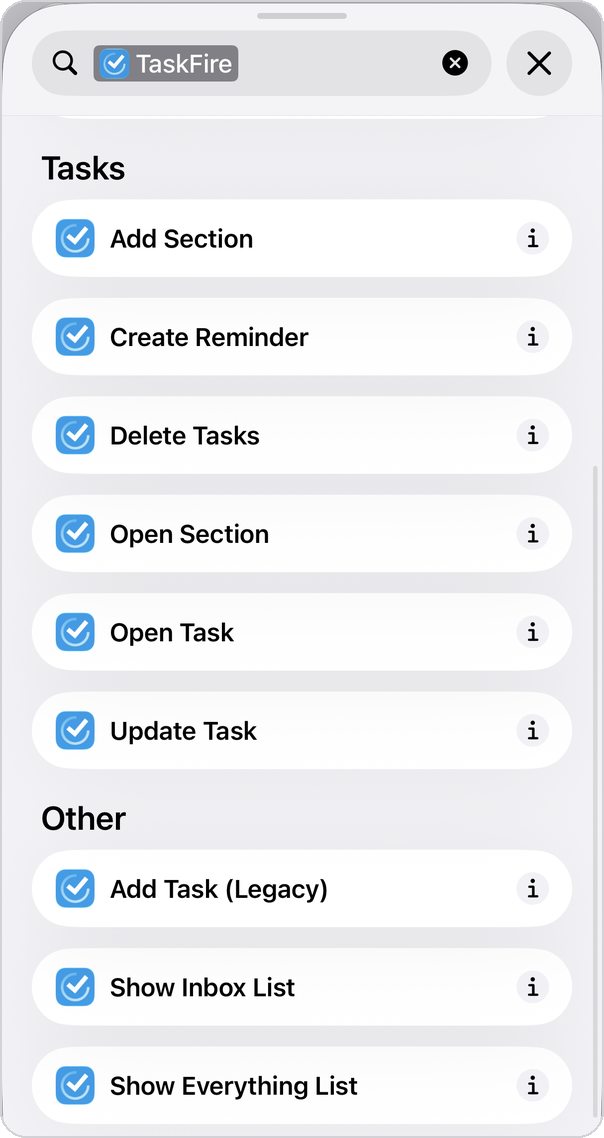
- To add a task, use Create Reminder. That's TaskFire's new-task action, and it can set the title, due date, list, note, tags, star, link, and repeat.
- Skip Add Task (Legacy). It's the older version and can't do as much.
- Add Apple's own actions around it, like Ask for Input, Find Calendar Events, Get Weather, or Use Model for Apple Intelligence. Tap play to test.
Tips:
- Test with real examples. If your Shortcut uses Apple Intelligence, try it on a real email or message before you rely on it.
- Name it something you can say. Siri AI runs any Shortcut by name: "Hey Siri, Weekly Reset."
Still stuck?
Write to support@appigo.com and tell us which Shortcut you're setting up and what happened. A screenshot helps.
Was this article helpful?
That’s Great!
Thank you for your feedback
Sorry! We couldn't be helpful
Thank you for your feedback
Feedback sent
We appreciate your effort and will try to fix the article